
www.rivitmedia.comwww.rivitmedia.comwww.rivitmedia.com
  • Home
  • Tech News
    Tech NewsShow More
    Microsoft’s May 2025 Patch Tuesday: Five Actively Exploited Zero-Day Vulnerabilities Addressed
    7 Min Read
    Malicious Go Modules Unleash Disk-Wiping Chaos in Linux Supply Chain Attack
    4 Min Read
    Agentic AI: Transforming Cybersecurity in 2025
    3 Min Read
    Cybersecurity CEO Accused of Planting Malware in Hospital Systems: A Breach of Trust That Shocks the Industry
    6 Min Read
    Cloud Convenience, Criminal Opportunity: How Google Sites Became a Launchpad for Elite Phishing
    6 Min Read
  • Cyber Threats
    • Malware
    • Ransomware
    • Trojans
    • Adware
    • Browser Hijackers
    • Mac Malware
    • Android Threats
    • iPhone Threats
    • Potentially Unwanted Programs (PUPs)
    • Online Scams
    • Microsoft CVE Errors
  • How-To-Guides
  • Product Reviews
    • Hardware
    • Software
  • IT/Cybersecurity Best Practices
  • FREE SCAN
  • Cybersecurity for Business
Search
  • ABOUT US
  • TERMS AND SERVICES
  • SITEMAP
  • CONTACT US
© 2023 rivitMedia.com. All Rights Reserved.
Reading: “Suspicious Logins to Your Mailbox” Scam
Share
Notification Show More
Font ResizerAa
www.rivitmedia.comwww.rivitmedia.com
Font ResizerAa
  • Online Scams
  • Tech News
  • Cyber Threats
  • Mac Malware
  • Cybersecurity for Business
  • FREE SCAN
Search
  • Home
  • Tech News
  • Cyber Threats
    • Malware
    • Ransomware
    • Trojans
    • Adware
    • Browser Hijackers
    • Mac Malware
    • Android Threats
    • iPhone Threats
    • Potentially Unwanted Programs (PUPs)
    • Online Scams
  • How-To-Guides
  • Product Reviews
    • Hardware
    • Software
  • IT/Cybersecurity Best Practices
    • Cybersecurity for Business
  • FREE SCAN
  • Sitemap
Follow US
  • ABOUT US
  • TERMS AND SERVICES
  • SITEMAP
  • CONTACT US
© 2022 Foxiz News Network. Ruby Design Company. All Rights Reserved.
www.rivitmedia.com > Blog > Cyber Threats > Online Scams > “Suspicious Logins to Your Mailbox” Scam
Online Scams

“Suspicious Logins to Your Mailbox” Scam

How to Deal With “Suspicious Logins to Your Mailbox” Scam

riviTMedia Research
Last updated: June 17, 2025 4:55 pm
riviTMedia Research
Share
How to Deal With “Suspicious Logins to Your Mailbox” Scam
SHARE

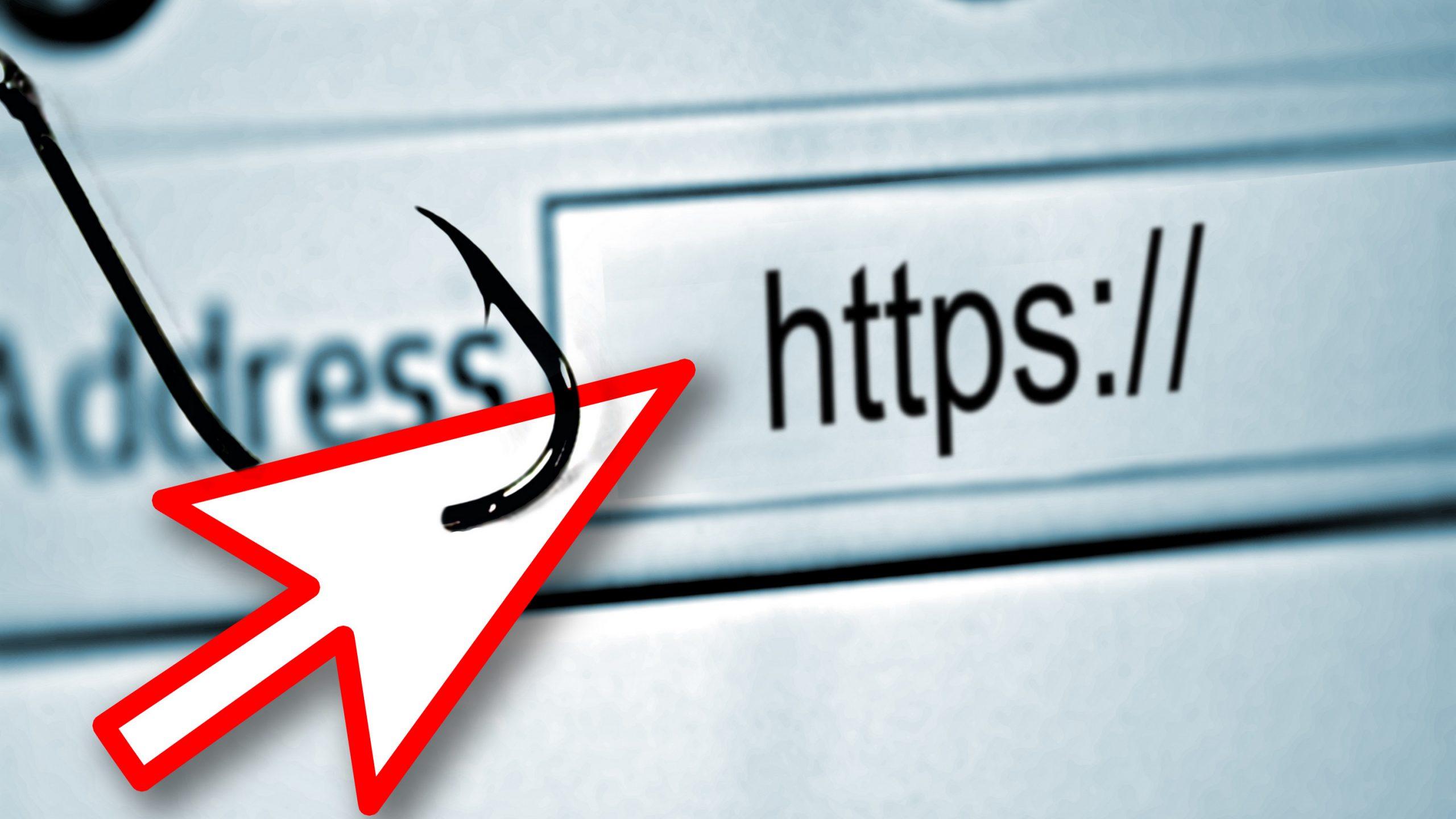
The “Suspicious Logins to Your Mailbox” scam is a phishing attack disguised as a legitimate security alert from your email provider. It claims your account has been accessed from an unfamiliar location and urges immediate action to “verify” your identity. In reality, its sole purpose is to trick you into providing login credentials on a fake website controlled by cybercriminals.

Contents
Overview of Threat TypeDetailed Evaluation of the ScamHow I Got InfectedWhat It DoesShould You Be Worried About Your System?Example of the Scam EmailHow to Manually Identify and Remove Email ScamsStep 1: Identify Suspicious EmailsStep 2: Do Not Click Links or Download AttachmentsStep 3: Report the Email ScamStep 4: Block the SenderStep 5: Check Your Accounts for Unauthorized ActivityStep 6: Scan Your Device for MalwareStep 7: Adjust Your Email Security SettingsHow to Remove Email Scams Using SpyHunter (Automated Method)Step 1: Download SpyHunterStep 2: Install SpyHunterStep 3: Perform a Full System ScanStep 4: Review and Remove Detected ThreatsStep 5: Enable Real-Time ProtectionStep 6: Keep SpyHunter UpdatedPreventing Future Email ScamsUse a Secure Email ProviderBe Cautious with Email LinksAvoid Public Wi-Fi for Sensitive ActivitiesRegularly Change Your PasswordsUse Anti-Phishing ExtensionsRecommended ActionConclusion

Scan Your Your Device for “Suspicious Logins to Your Mailbox” Scam

✅ Free Scan 

✅13M Scans/Month

✅Instant Detection

Download SpyHunter 5
Download SpyHunter for Mac

✅ Removes malware

✅ Prevents scams

✅ Detects trojans

Don’t leave your system unprotected. Download SpyHunter today for free, and scan your device for malware, scams, or any other potential threats. Stay Protected!


Overview of Threat Type

DetailInfo
Threat typeEmail scam / Phishing
Associated email addressesVarying spoofed sender addresses, not actual providers
Detection namesGeneric phishing detection names by email filters
Symptoms of infectionPassword theft, unauthorized access
Damage & distributionData theft, identity theft, fraud; delivered via deceptive email links
Danger levelHigh
Removal toolSpyHunter (download here)

Detailed Evaluation of the Scam

How I Got Infected

Victims typically receive a well-crafted email stating there’s been a “suspicious sign‑in attempt” to their mailbox from an unusual location. It mimics legitimate service alerts and includes a call to action such as, “verify your account now” via a provided link. Once clicked, users are taken to a counterfeit login page where credentials are stolen.

What It Does

The fake site captures entered usernames and passwords and sends them to attackers. They can then hijack email accounts, reset passwords on other services, send out more phishing messages, commit financial fraud, steal identities, or launch malware campaigns using your contacts.

Should You Be Worried About Your System?

Yes—if you’ve clicked the link and entered credentials, assume your account has been compromised. Even if your device isn’t infected with malware, your personal data and privacy are at serious risk.


Example of the Scam Email

Subject: Suspicious login attempt detected
Dear user,
We noticed an unidentified login attempt to your mailbox from a new device. To secure your account, please verify your identity by clicking the link below:
Verify your mailbox now
This is required to prevent account deactivation.
If this wasn’t you, please verify immediately or your email may be locked.
Thank you,
Your Mailbox Security Team

How to Manually Identify and Remove Email Scams

Manually removing email scams involves recognizing fraudulent messages, securing your accounts, and taking precautions to prevent future attacks. Follow these steps:

Step 1: Identify Suspicious Emails

Before taking action, you need to identify scam emails. Common signs include:

  • Unknown Sender: Emails from unfamiliar addresses, especially if they claim to be from banks, tech support, or government agencies.
  • Urgency or Threats: Scammers often pressure you to act immediately (e.g., “Your account will be closed in 24 hours!”).
  • Poor Grammar & Spelling: Many scam emails contain obvious grammatical mistakes.
  • Suspicious Links & Attachments: Hover over links (without clicking) to check the actual URL. If it looks odd, don’t click.
  • Requests for Personal Information: Legitimate companies will never ask for passwords, Social Security numbers, or credit card details via email.

Step 2: Do Not Click Links or Download Attachments

If you suspect an email is a scam:

  • Do not click on any links.
  • Do not open any attachments.
  • Do not reply to the sender.

Step 3: Report the Email Scam

You can report the scam email to various authorities:

  • Gmail/Outlook/Yahoo Users: Click the “Report Phishing” or “Report Spam” button in your email client.
  • FTC (Federal Trade Commission, USA): Report to FTC Complaint Assistant.
  • Google Safe Browsing: If the scam email contains a phishing website, report it here.

Step 4: Block the Sender

  • Gmail: Open the email, click the three dots in the top-right corner, and select “Block [Sender Name]”.
  • Outlook: Open the email, select “Junk” > “Block Sender”.
  • Yahoo Mail: Open the email, click “More” > “Block Sender”.

Step 5: Check Your Accounts for Unauthorized Activity

If you accidentally clicked a link or shared sensitive information:

  • Change your passwords immediately. Use strong, unique passwords for every account.
  • Enable two-factor authentication (2FA). This adds an extra layer of security to your accounts.
  • Check your banking statements for unauthorized transactions.

Step 6: Scan Your Device for Malware

Some email scams contain malware hidden in attachments or malicious links. Run a full system scan using built-in tools:

  • Windows Defender (Windows 10/11):
    • Go to Settings > Update & Security > Windows Security > Virus & Threat Protection.
    • Click “Quick Scan” or “Full Scan”.
  • Mac Users:
    • Use Malwarebytes for Mac or another security tool.

Step 7: Adjust Your Email Security Settings

  • Enable email filtering to reduce spam and phishing emails.
  • Add a third-party spam filter such as Mailwasher or Spamihilator.
  • Educate yourself and others on phishing techniques to avoid future scams.

How to Remove Email Scams Using SpyHunter (Automated Method)

Scan Your System for Viruses

✅ Free Scan Available 

✅13M Scans/Month

✅Instant Detection

Download SpyHunter for Free

✅ Removes ransomware

✅ Prevents scams

✅ Detects trojans

Don’t leave your system unprotected. Download SpyHunter today for free, and scan your device for malware, scams, or any other potential threats. Stay Protected!

For users who prefer an automated, foolproof method to remove threats linked to email scams, SpyHunter offers an advanced security solution. SpyHunter is an anti-malware tool designed to detect and remove phishing-related threats, spyware, Trojans, and other cyber threats. Follow these steps:

Step 1: Download SpyHunter

  1. Visit the official SpyHunter download page: Download SpyHunter
  2. Click on “Download” and save the installation file to your computer.
Download SpyHunter 5
Download SpyHunter for Mac

Step 2: Install SpyHunter

  1. Locate the downloaded file (SpyHunter-Installer.exe) and double-click to open it.
  2. Follow the on-screen installation instructions.
  3. After installation, launch SpyHunter.

Step 3: Perform a Full System Scan

  1. Open SpyHunter and navigate to “Malware/PC Scan”.
  2. Click “Start Scan Now” to begin a deep scan of your system.
  3. SpyHunter will analyze files, registry entries, and processes for any threats linked to email scams, phishing, and malware.

Step 4: Review and Remove Detected Threats

  1. Once the scan completes, SpyHunter will list all detected threats.
  2. Click "Fix Threats" to remove them.
  3. Restart your computer to complete the removal process.

Step 5: Enable Real-Time Protection

SpyHunter includes real-time protection features to help prevent future infections:

  • Enable Active Guards: This monitors your system for malware in real time.
  • Schedule Automatic Scans: Set up periodic scans to detect new threats early.

Step 6: Keep SpyHunter Updated

  • Regularly check for updates to ensure SpyHunter detects the latest threats.
  • To update SpyHunter, open the app and go to "Settings" > "Update", then click "Check for Updates".

Preventing Future Email Scams

Now that you've removed email scams, take proactive steps to prevent them in the future:

Use a Secure Email Provider

  • Consider switching to a secure email provider like ProtonMail or Tutanota, which offer advanced encryption.

Be Cautious with Email Links

  • If you receive an email with a suspicious link, verify the website’s legitimacy before clicking.

Avoid Public Wi-Fi for Sensitive Activities

  • Scammers can use public Wi-Fi to intercept your data. Use a VPN when accessing email on public networks.

Regularly Change Your Passwords

  • Update your passwords every few months, and never reuse old passwords.

Use Anti-Phishing Extensions

  • Install browser extensions like Bitdefender TrafficLight or Avast Online Security to detect phishing links in real-time.

Email scams are a serious cyber threat that can lead to financial loss, identity theft, or malware infections. By following the manual removal steps, you can effectively identify and remove suspicious emails on your own. However, for advanced protection, using SpyHunter ensures a more thorough and automated approach to detecting and removing phishing-related threats.

Recommended Action

For a fast and efficient way to remove email scams and related malware, download and install SpyHunter now: Download SpyHunter

By staying informed and proactive, you can protect yourself from future email scams and online threats!

Download SpyHunter 5
Download SpyHunter for Mac

Conclusion

The “Suspicious Logins to Your Mailbox” phishing scam is a dangerous deception designed to steal your login credentials. Be cautious: hover over links, verify sender addresses, and never act on out-of-the-blue security alarms. If you suspect you fell for it—immediately change affected passwords, enable multi-factor authentication (MFA), and secure your account with legitimate provider tools. Then, run a scan using SpyHunter to ensure no malware is lurking on your system.

Scan Your Your Device for “Suspicious Logins to Your Mailbox” Scam

✅ Free Scan 

✅13M Scans/Month

✅Instant Detection

Download SpyHunter 5
Download SpyHunter for Mac

✅ Removes malware

✅ Prevents scams

✅ Detects trojans

Don’t leave your system unprotected. Download SpyHunter today for free, and scan your device for malware, scams, or any other potential threats. Stay Protected!

You Might Also Like

ReCaptha Version 3 Malware: Threat Details, Detection, and Removal Guide
EUATM Malware: A Comprehensive Guide
What is ElonMuskIsGreedy Ransomware and How Does it Threaten Your System?
“Zoho – Review Your Outgoing Emails” Scam
TrustedSafeFinder Adware
TAGGED:account takeoverAdware removalAntivirus softwarecomputer viruscredential phishing techniquecyber attackCybersecurityCybersecurity threatscybersecurity toolsdata breachdata leak consequencesdigital forensicsemail spoofing detectionencrypted malwareendpoint protectionfake login pagefirewall protectionidentity theft preventioninformation securityinternet safetyMalicious softwaremalware removalmalware scannerMFA enforcementnetwork securityOnline securityPhishing attackphishing email templateransomware protectionsecure browsingsecurity breachspyware detectionsystem vulnerabilitythreat detectiontrojan virususer credential harvestingvirus protectionzero-day exploit

Sign Up For Daily Newsletter

Be keep up! Get the latest breaking news delivered straight to your inbox.
By signing up, you agree to our Terms of Use and acknowledge the data practices in our Privacy Policy. You may unsubscribe at any time.
Share This Article
Facebook Copy Link Print
Share
Previous Article The “Incoming Messages Held In Quarantine” Email Scam
Next Article The Webmail System Notification Scam
Leave a Comment

Leave a Reply Cancel reply

Your email address will not be published. Required fields are marked *

Scan Your System for Free

✅ Free Scan Available 

✅ 13M Scans/Month

✅ Instant Detection

Download SpyHunter 5
Download SpyHunter for Mac

//

Check in Daily for the best technology and Cybersecurity based content on the internet.

Quick Link

  • ABOUT US
  • TERMS AND SERVICES
  • SITEMAP
  • CONTACT US

Sign Up for Our Newsletter

Subscribe to our newsletter to get our newest articles instantly!

www.rivitmedia.comwww.rivitmedia.com
© 2023 • rivitmedia.com All Rights Reserved.
  • ABOUT US
  • TERMS AND SERVICES
  • SITEMAP
  • CONTACT US