
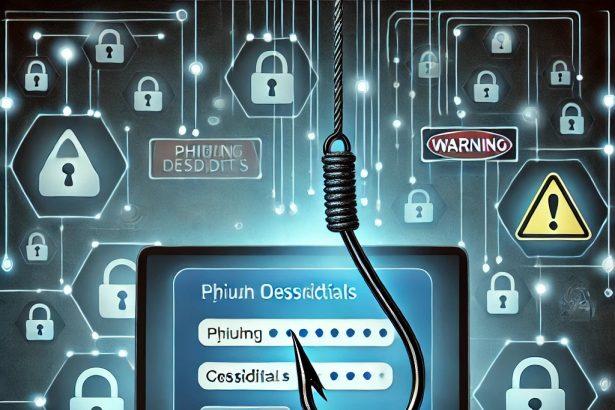

Phishing emails remain one of the most common and damaging cyber threats targeting businesses today. Microsoft Outlook, being widely used in corporate environments, is often a primary target for attackers attempting to steal credentials, deploy malware, or gain unauthorized access to company systems.
- Protect Your Business’ Cybersecurity Now!
- What Are Phishing Emails and Why They Target Outlook Users
- Keeping Your Business Safe Online
- 1. Enable Outlook’s Built-In Anti-Phishing Protection
- 2. Use the “Report Phishing” Feature
- 3. Strengthen Email Authentication (SPF, DKIM, DMARC)
- SPF (Sender Policy Framework)
- DKIM (DomainKeys Identified Mail)
- DMARC (Domain-based Message Authentication, Reporting, and Conformance)
- 4. Train Employees to Recognize Phishing Attempts
- 5. Use Multi-Factor Authentication (MFA)
- 6. Configure Safe Senders and Blocked Lists
- 7. Disable Automatic Loading of External Content
- 8. Use Advanced Threat Protection Tools
- 9. Create Outlook Rules to Filter Suspicious Emails
- 10. Monitor and Respond to Phishing Attempts
- Common Signs of Phishing Emails in Outlook
- Building a Long-Term Anti-Phishing Strategy
- Conclusion: Protecting Your Business from Outlook Phishing Attacks
- Protect Your Business’ Cybersecurity Now!
A single successful phishing email can lead to data breaches, financial loss, ransomware infections, and reputational damage. For small and medium-sized businesses (SMEs), the impact can be especially severe due to limited IT security resources.
The good news is that Outlook provides several built-in tools and configurations that can significantly reduce phishing risk—if properly set up and maintained. In this guide, you’ll learn how to stop phishing emails in Outlook using practical, actionable cybersecurity strategies designed for business environments.
Protect Your Business’ Cybersecurity Now!
Protect your business from evolving cyber threats with our tailored cybersecurity solutions designed for companies of all sizes. From malware and phishing to ransomware protection, our multi-license packages ensure comprehensive security across all devices, keeping your sensitive data safe and your operations running smoothly. With advanced features like real-time threat monitoring, endpoint security, and secure data encryption, you can focus on growth while we handle your digital protection. **Request a free quote today** for affordable, scalable solutions and ensure your business stays secure and compliant. Don’t wait—get protected before threats strike!
What Are Phishing Emails and Why They Target Outlook Users
Phishing emails are fraudulent messages designed to trick users into revealing sensitive information such as passwords, financial data, or internal business credentials.
Common phishing tactics include:
- Fake login pages (Microsoft 365, banking, CRM tools)
- Malicious attachments disguised as invoices or reports
- Urgent security alerts prompting password resets
- Spoofed sender addresses that appear legitimate
Outlook users are frequent targets because:
- It is widely used in enterprise environments
- It integrates with Microsoft 365 accounts
- Attackers can exploit trust in internal communication patterns
Understanding these risks is the first step toward effective prevention.
Keeping Your Business Safe Online
Browser Hijacker and malicious websites pose more and more dangers to modern businesses. Our cybersecurity experts have highlighted five websites that have become risky environments for businesses due to weak security practices, aggressive tracking behavior, and exposure to scams or malicious activity. These platforms are described as unsafe not only for casual users but also for organizations that could unknowingly leak sensitive data, suffer phishing attacks, or be exposed to malware through their use. To understand the specific websites involved and the detailed risks they pose, we strongly encourage reading our full guide here.
1. Enable Outlook’s Built-In Anti-Phishing Protection
Microsoft Outlook includes several built-in security features that help filter and block suspicious messages.
Turn on Junk Email Protection
Outlook automatically filters spam, but you can strengthen it:
- Go to Home > Junk > Junk Email Options
- Set filter level to High
- Enable Permanently delete suspected junk email
This reduces the chance of phishing emails reaching the inbox.
Activate Anti-Phishing Policies (Microsoft 365)
For business users:
- Use Microsoft Defender for Office 365
- Enable anti-phishing policies
- Configure impersonation protection for executives and domains
This helps block spoofed emails that mimic trusted contacts.
2. Use the “Report Phishing” Feature
One of the most effective ways to improve Outlook security is by actively reporting phishing attempts.
How to report phishing in Outlook:
- Select the suspicious email
- Click Report Message
- Choose Phishing
This helps Microsoft improve detection systems and protects your organization over time.
For businesses, enabling the reporting add-in across all employees ensures faster threat identification.
3. Strengthen Email Authentication (SPF, DKIM, DMARC)
Technical email authentication is essential for stopping phishing at the source.
SPF (Sender Policy Framework)
Verifies which servers are allowed to send emails on behalf of your domain.
DKIM (DomainKeys Identified Mail)
Ensures email content has not been tampered with in transit.
DMARC (Domain-based Message Authentication, Reporting, and Conformance)
Tells receiving servers how to handle suspicious emails and provides reporting.
Without these protections, attackers can easily spoof your business domain in Outlook inboxes.
4. Train Employees to Recognize Phishing Attempts
Human error is still the weakest link in cybersecurity.
Employees should be trained to identify:
- Urgent or threatening language (“Your account will be suspended”)
- Unexpected attachments or links
- Slight misspellings in email domains
- Requests for passwords or sensitive data
Best practice for SMEs:
- Conduct quarterly phishing simulation tests
- Provide short cybersecurity awareness training sessions
- Share real-world examples of phishing attempts
A well-trained team dramatically reduces risk, even when malicious emails reach the inbox.
5. Use Multi-Factor Authentication (MFA)
Even if a phishing attack successfully steals a password, MFA can block unauthorized access.
Enable MFA for all Outlook and Microsoft 365 accounts:
- Require authentication via app (preferred over SMS)
- Use conditional access policies for high-risk logins
This is one of the most effective defenses against account takeover.
6. Configure Safe Senders and Blocked Lists
Outlook allows you to manually control trusted and blocked senders.
Safe Senders:
Add verified internal contacts and trusted partners.
Blocked Senders:
Immediately block suspicious or repeated phishing sources.
However, businesses should avoid over-reliance on manual lists—attackers frequently change domains.
7. Disable Automatic Loading of External Content
Phishing emails often use hidden tracking pixels or external images.
To improve safety:
- Disable automatic image downloads in Outlook
- Prevent external content from loading without approval
This reduces tracking and limits exposure to malicious content.
8. Use Advanced Threat Protection Tools
While Outlook provides basic protection, businesses need advanced tools for stronger defense.
Enterprise-grade security solutions can:
- Scan attachments in real time
- Detect zero-day phishing attacks
- Block malicious links before clicks occur
- Analyze sender behavior patterns
For SMEs looking for an all-in-one solution, endpoint protection software such as SpyHunter for Business can add an additional layer of defense by identifying malware linked to phishing emails and isolating threats before they spread.
👉 Learn more about multi-license protection for businesses here.
Multi-license solutions are particularly useful for organizations managing multiple employee devices across departments.
9. Create Outlook Rules to Filter Suspicious Emails
Outlook rules can automatically move or delete high-risk messages.
Examples:
- Emails with external domains → move to “Quarantine” folder
- Emails containing “urgent payment” → flag for review
- Messages with attachments from unknown senders → isolate
While not foolproof, rules help reduce inbox exposure to common phishing patterns.
10. Monitor and Respond to Phishing Attempts
Stopping phishing emails is only part of the strategy—monitoring is equally important.
Businesses should:
- Regularly review security logs in Microsoft 365
- Monitor login attempts and unusual activity
- Respond immediately to reported phishing emails
A fast response can prevent escalation into a full-scale breach.
Common Signs of Phishing Emails in Outlook
Employees should be trained to recognize warning signs such as:
- Mismatched sender addresses
- Poor grammar or formatting
- Unexpected attachments (.exe, .zip, .html files)
- Links that do not match visible URLs
- Requests for confidential information
Encourage a “verify before you click” mindset across your organization.
Building a Long-Term Anti-Phishing Strategy
Stopping phishing emails in Outlook is not a one-time setup—it requires continuous improvement.
A strong business strategy includes:
- Regular security updates for Microsoft 365
- Employee awareness training
- Email authentication enforcement
- Endpoint protection tools
- Active monitoring and incident response planning
Cybersecurity should be treated as an ongoing business function, not a technical afterthought.
Conclusion: Protecting Your Business from Outlook Phishing Attacks
Phishing emails in Outlook are a persistent threat, but they are highly manageable with the right combination of tools, policies, and employee awareness.
By enabling Outlook’s built-in protections, enforcing MFA, configuring email authentication, and using advanced security solutions, businesses can significantly reduce the risk of successful attacks.
For SMEs especially, layering security measures is essential. Adding endpoint protection and centralized malware defense—such as SpyHunter with multi-license support—can further strengthen your organization’s resilience against evolving phishing threats.
👉 Strengthen your business security today and explore multi-device protection here.
Protect Your Business’ Cybersecurity Now!
Protect your business from evolving cyber threats with our tailored cybersecurity solutions designed for companies of all sizes. From malware and phishing to ransomware protection, our multi-license packages ensure comprehensive security across all devices, keeping your sensitive data safe and your operations running smoothly. With advanced features like real-time threat monitoring, endpoint security, and secure data encryption, you can focus on growth while we handle your digital protection. **Request a free quote today** for affordable, scalable solutions and ensure your business stays secure and compliant. Don’t wait—get protected before threats strike!